REN GOLF User Manual
Below are step-by-step instructions organized by use case. Each section tells you exactly "how to do it." For feature highlights and design philosophy, see the Features page.
How to Register & Sign In?
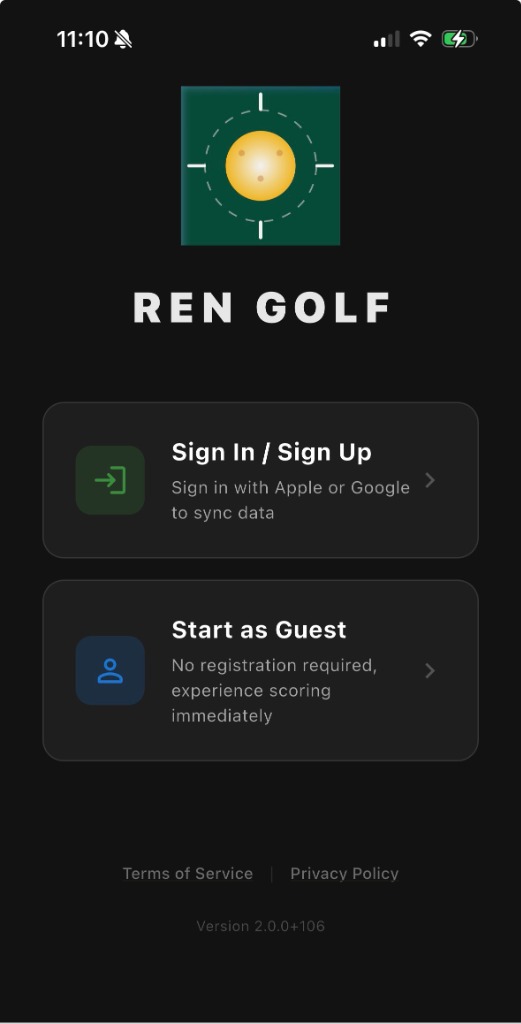
Open the App and navigate to the sign-in page.
Tap Sign in with Google or Sign in with Apple (iOS only).
After authorization, the system automatically creates your account and enters the main screen.
How to Set Up Your Profile?
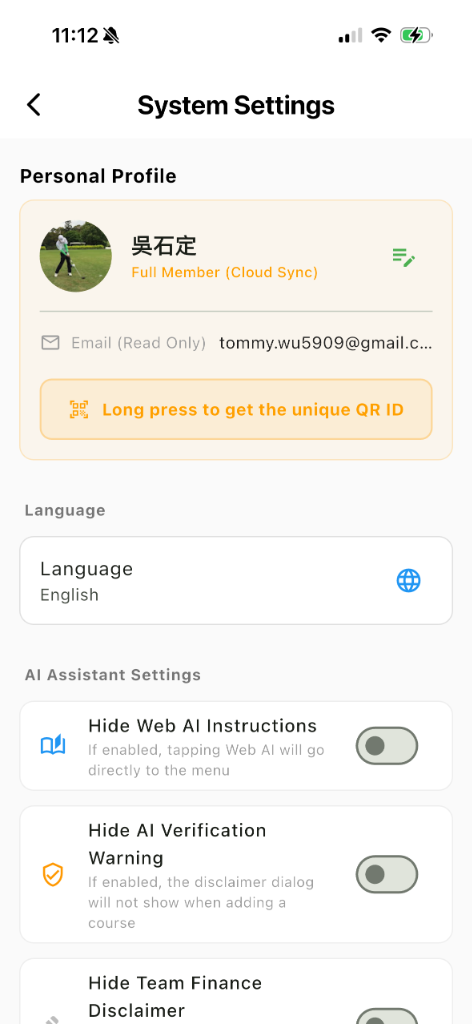
Tap the ☰ Menu in the top left, then select Settings.
In the profile section, tap the 📝 Edit icon on the right.
Enter or modify your Nickname (this will be displayed on the Live Board and leaderboards).
Tap Save to complete setup.
How to Create a New Round?
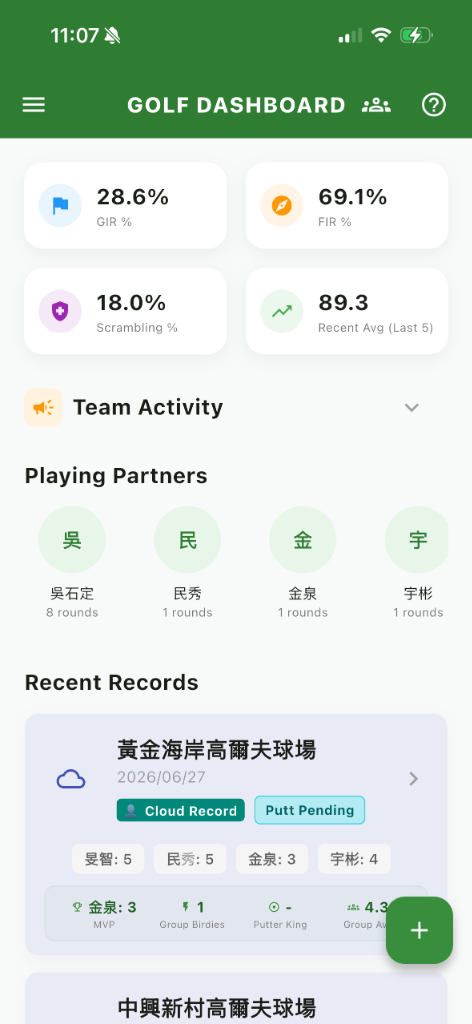
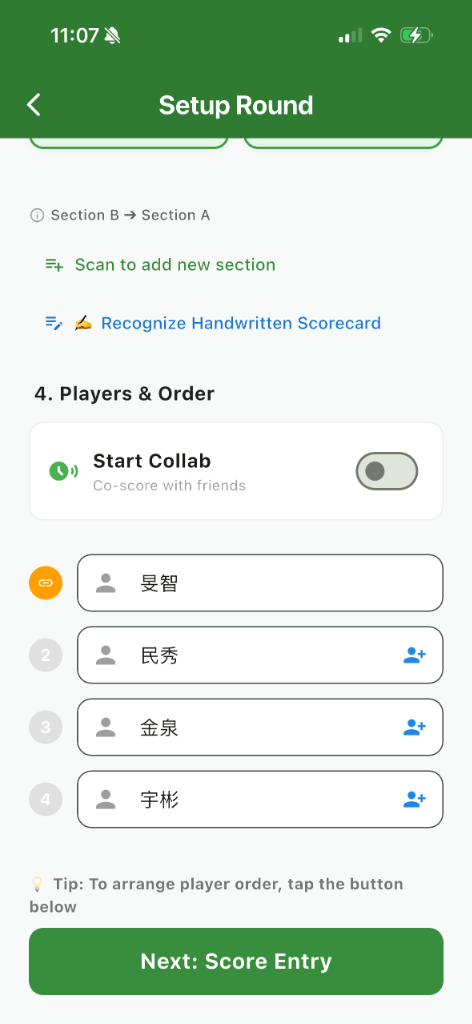
On the main screen, tap the + floating button in the bottom right.
The system displays a course search picker. Enter partial course name in the search box (Chinese or English).
Select a course from results. If marked as Cloud, the system auto-downloads course data locally.
Set the date and number of players, then tap Create.
After creation, the system auto-loads the course's Par and Handicap configuration and enters the scorecard view.
How to Enter Scores?
Manual Input
On Phone
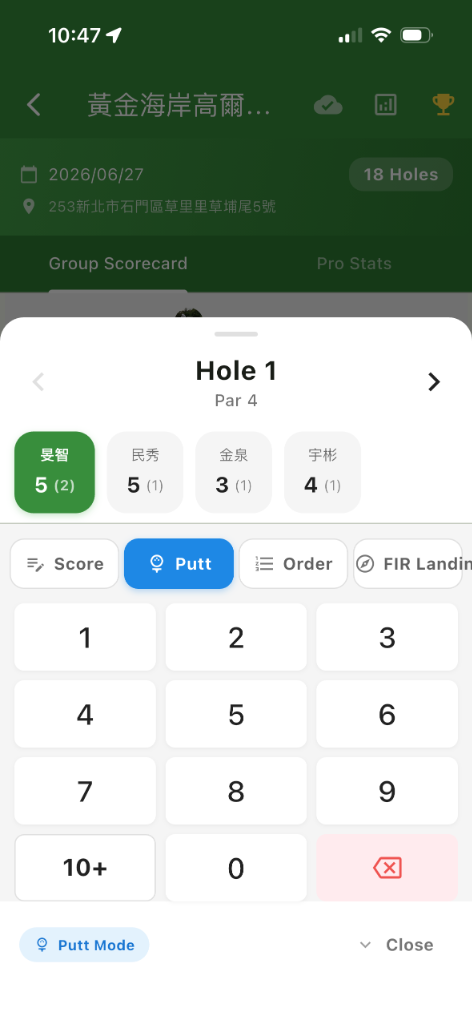
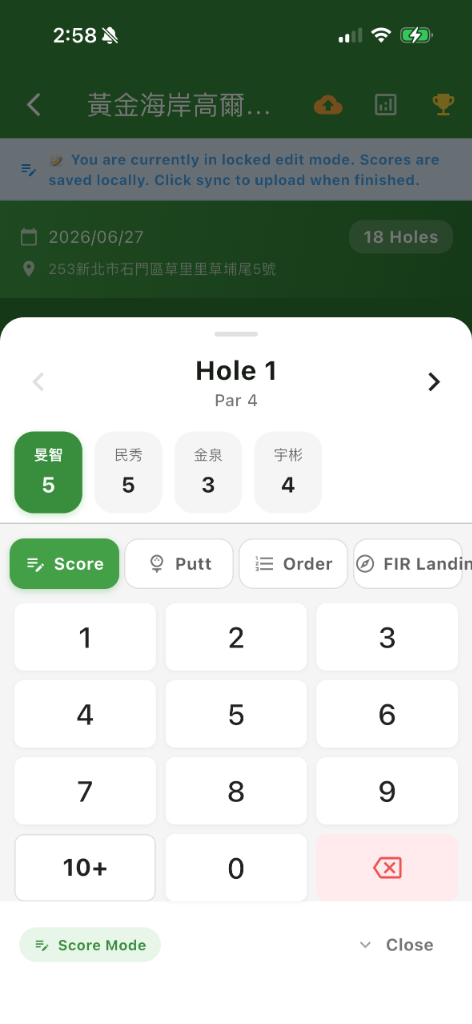
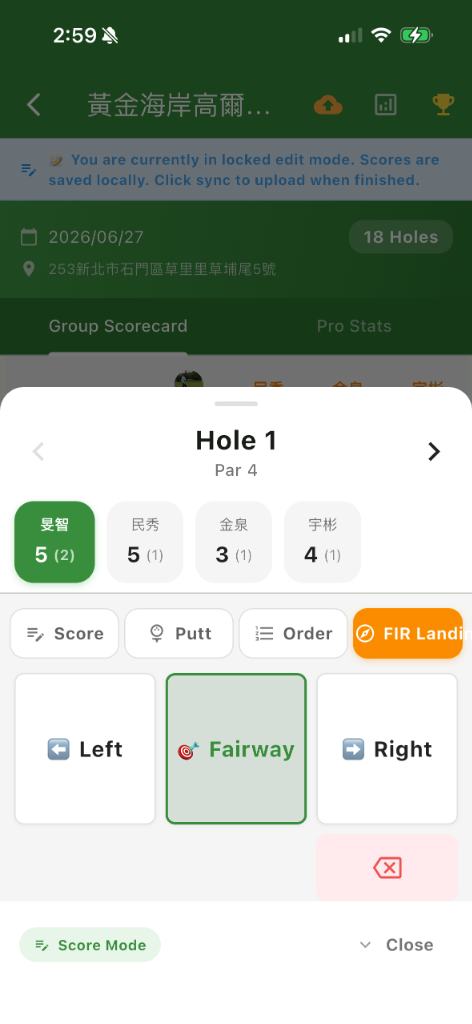
In the scorecard view, tap any hole number's score field.
In the bottom keyboard popup, enter the hole's "Total Strokes", "Putts", and FIR Landing.
Tap another hole or close the keyboard — the system auto-saves and calculates gross score and over/under par (+/-).
On Smartwatch (Paired Watch Required)
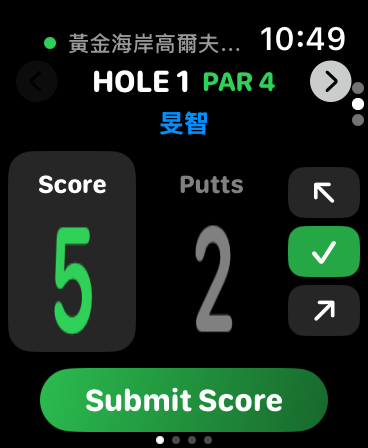
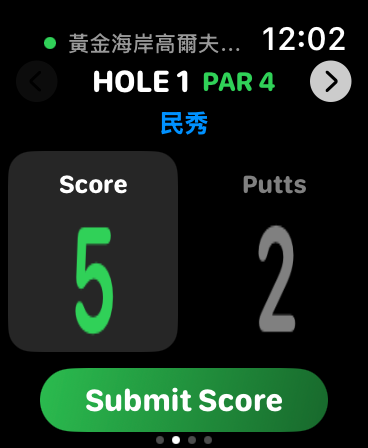
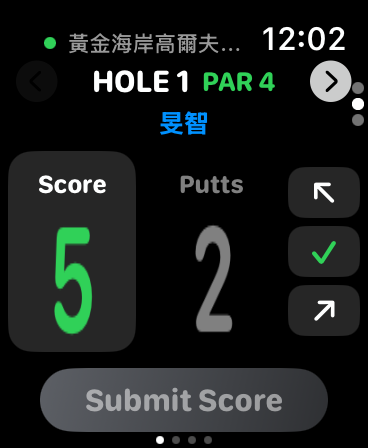
Tap Gross/Putts, rotate the Digital Crown to enter scores, and enter FIR Landing on the right side of the watch face (only supports personal FIR landing).
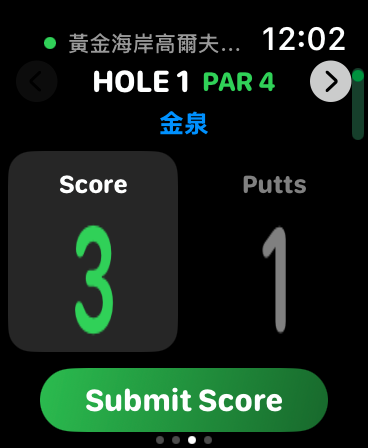
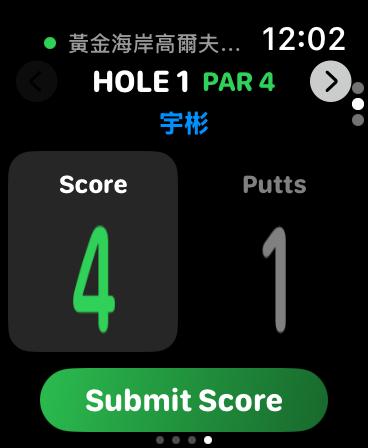
Swipe left or right to select other players and enter their scores.
Tap the ">" on the top right to go to the next hole, tap "<" on the top left to go to the previous hole.
How to Use AI Scorecard Recognition?
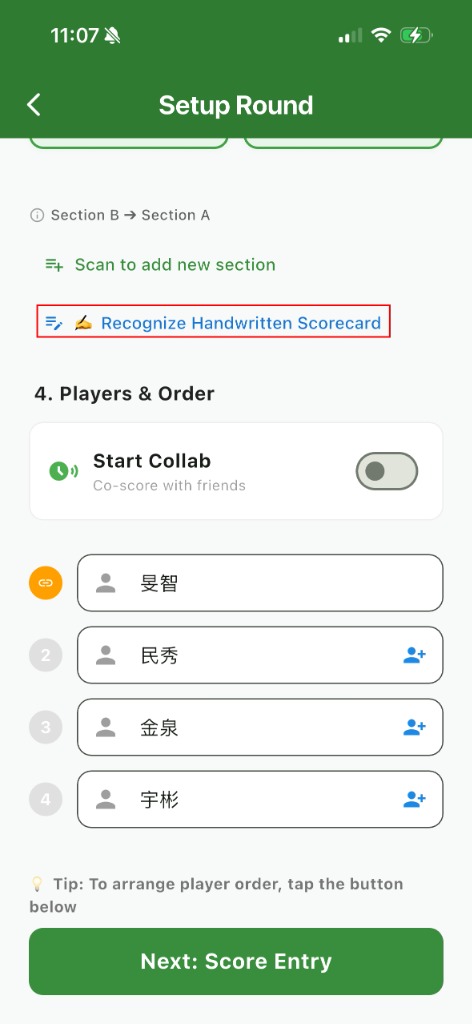
After clicking on any generative AI, please long-press in the web AI dialog box until the menu appears, and select 'Paste' to paste the instruction (prompt) asking the AI to extract data from the table. Taking a photo in the previous step is to get the appropriate image size for the AI to read.
Extracting information by AI requires a long wait. Once the AI has finished executing, copy everything exactly from the first character of the AI's response to the final punctuation mark. Then click the 'X' in the top left corner to leave the web page.
How to Invite Friends for Collaborative Scoring?
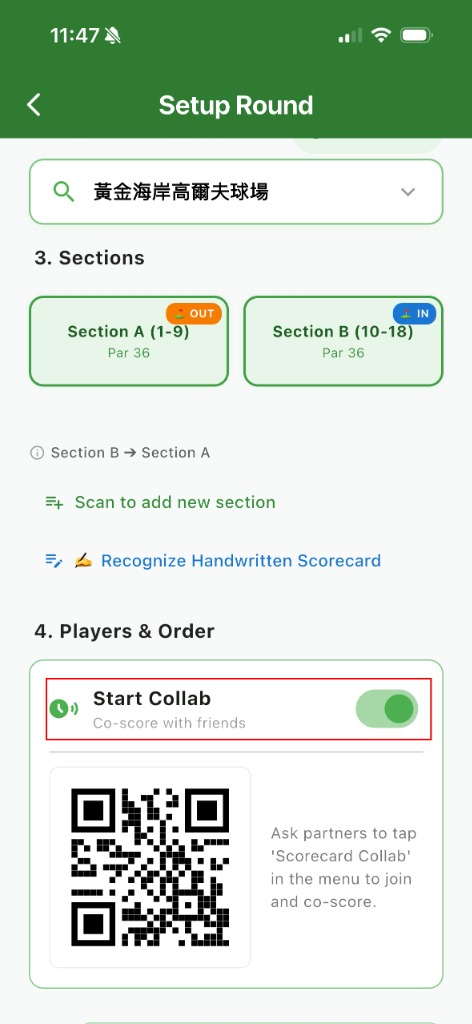
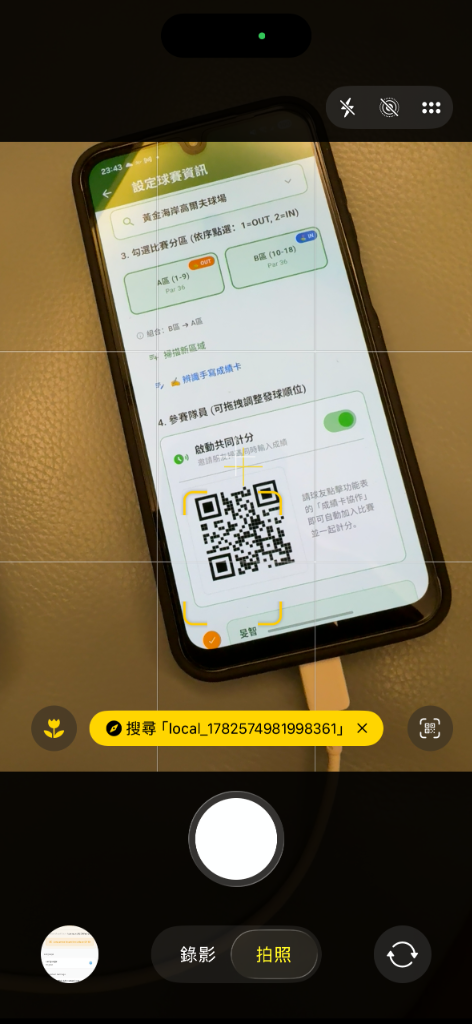
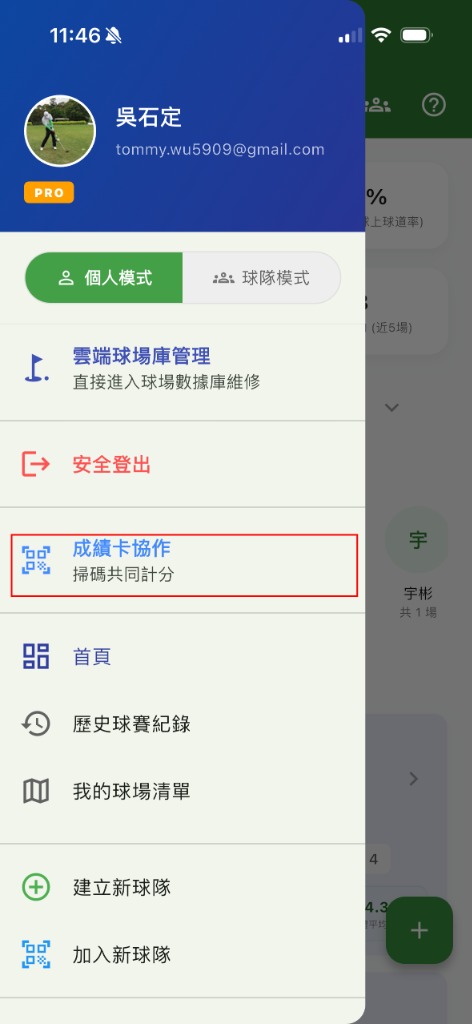
This feature allows multiple players to collaboratively score the same round in real time on their own devices. The system supports guest access without an account, allowing guests to initiate or join collaborative rounds directly without registering or logging in (guest names can be modified in the settings page).
1. Host (Initiator) Steps
Create a Round: Select "Create New Scorecard" in the APP and set the mode to "Cloud/Collaborative".
Allow Joins: Once created, the system will automatically upload the scorecard to the cloud and assign you as the "Host". A unique QR Code or Invite Code for the round will be displayed.
Share Information: Show the QR Code on your device for your teammates to scan, or send the invite code to them.
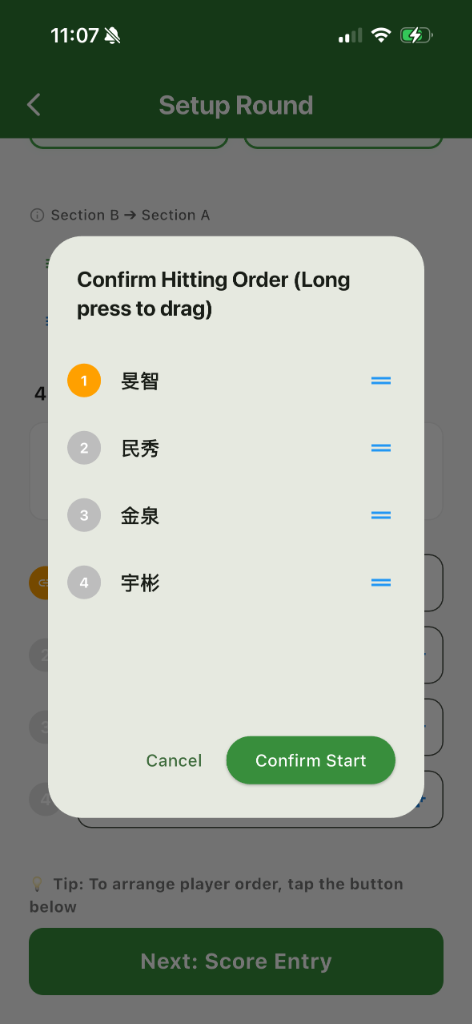
Start Scoring: As teammates join, you can adjust the order of the players and click next to begin entering scores. Any score changes will instantly synchronize with all joined teammates.
2. Teammate (Participant) Steps
Scan or Enter Invite Code: Open the APP, and from the home screen or join round entry, select "Scan QR Code" or "Manually Enter Invite Code".
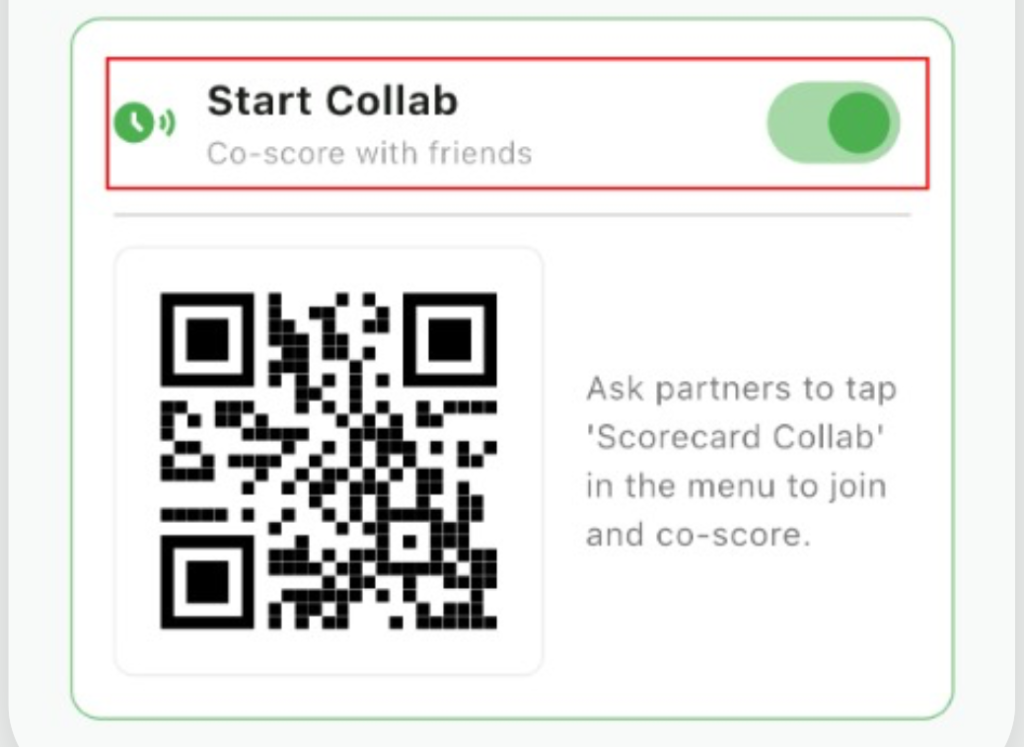
Connect and Bind Identity: After successful verification, the system will automatically add your account (including guest identity) to the round's collaborative connection list. You will occupy a spot on the player list and gain real-time read and write permissions for the scorecard.
Collaborative Scoring: Once joined, the scorecard will appear in your round list. Tap to enter the scorecard and start entering and viewing scores collaboratively with the host and other teammates.
3. Co-scoring and Sync Guidelines
How to Use Smartwatch for Scoring?
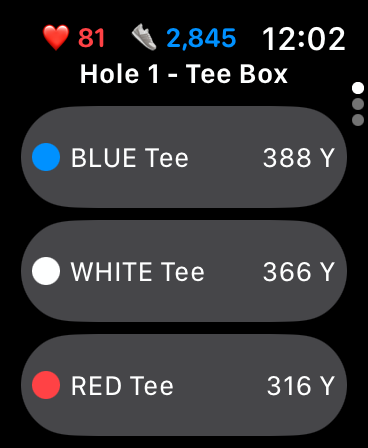
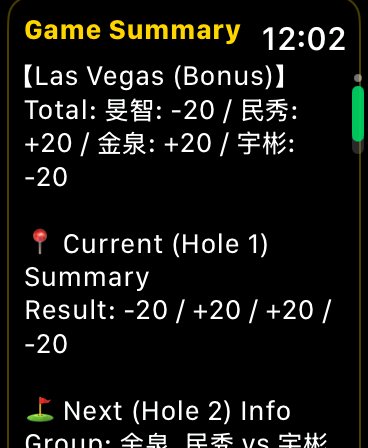
Pair Watch: Make sure your Apple Watch or Wear OS watch is paired with your phone and has the REN GOLF app installed.
Start Round on Phone: Follow the normal process to create a new round and enter the scorecard view on your phone.
Auto Sync: Open REN GOLF on your watch. The system will auto-detect and sync the ongoing round, displaying the remaining yardage to the green and current hole number.
Enter Scores: Swipe left or right on the watch face to select a player and enter the scoring interface. Rotate the Digital Crown to quickly enter gross score and putts. Press the submit score button after entering. It will sync instantly back to the phone.
View Game Status (Games): If you have created a game format, swipe up to check current points and match status without taking out your phone.
How to View and Analyze Personal Data?
REN GOLF Data Display: Data is shown on the Dashboard (averages from the last 5 and 10 rounds) and on each scorecard page (tap the tab or swipe right on a single scorecard).
Dashboard
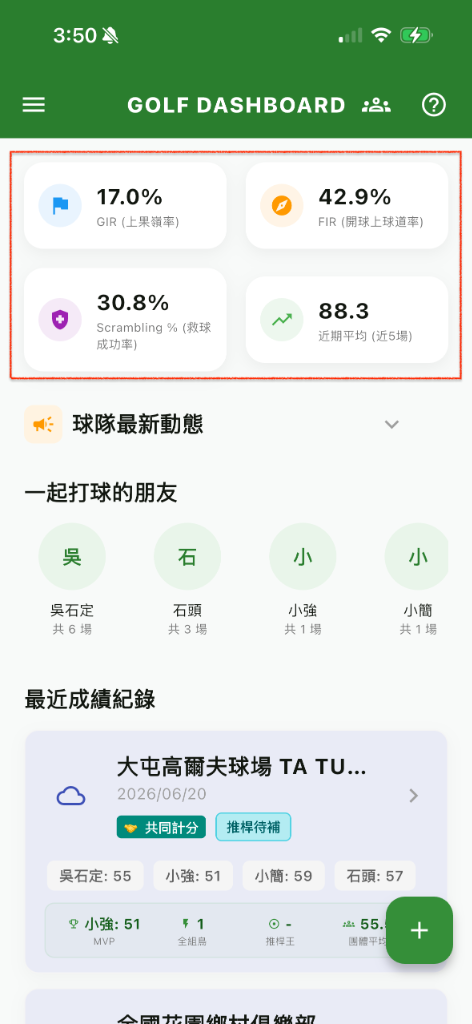
The REN GOLF Dashboard shows your averages over the most recent rounds. For amateur golfers, we highlight the three most crucial metrics: GIR (Greens in Regulation) / FIR (Fairways in Regulation) / Scrambling %.
Scorecard Page
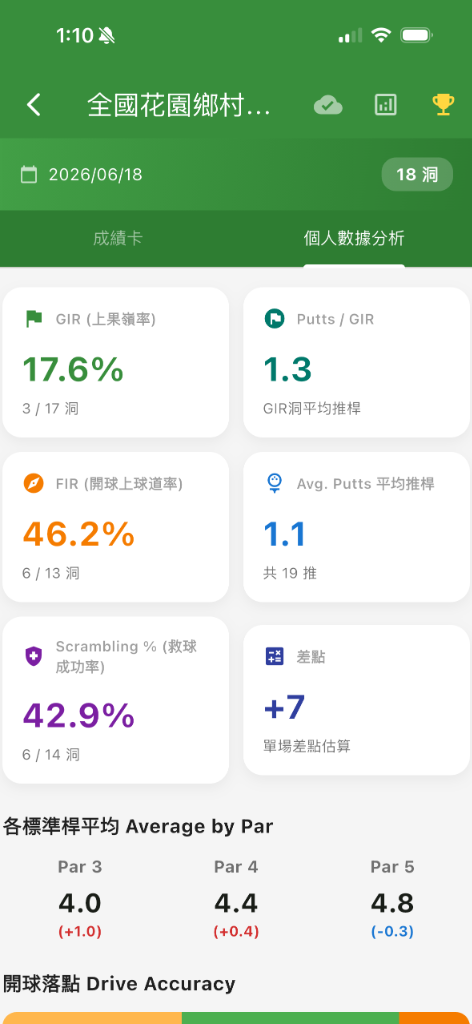
Swipe right on the REN GOLF scorecard to view not only the top three metrics (GIR, FIR, Scrambling %), but also Putts / GIR, Avg. Putts, Handicap, individual hole achievements, and a simplified scoring breakdown chart.
Chart Interpretation & Advanced Data:
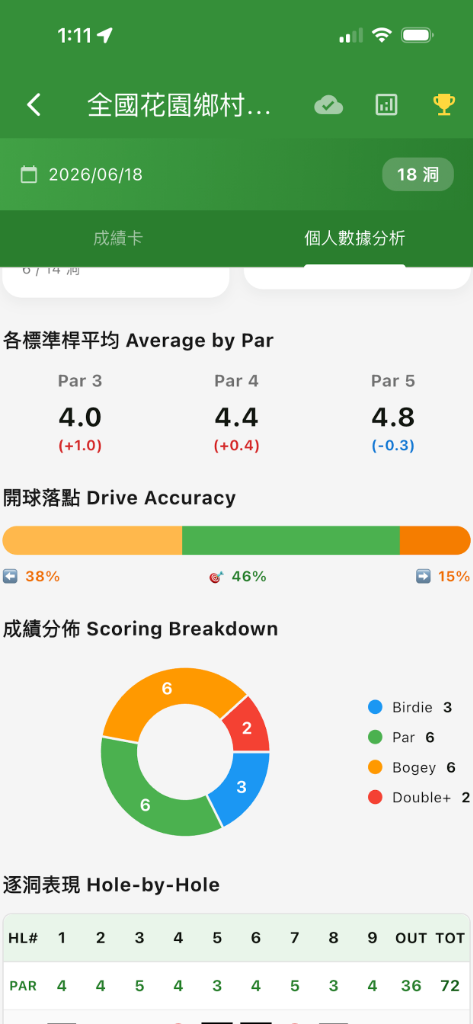
Scroll down to view various analytical charts, including: Scoring Breakdown (a pie chart showing your ratio of Birdies, Pars, and Bogeys) and GIR & FIR charts (understand your iron accuracy and driving stability).
Average by Par:
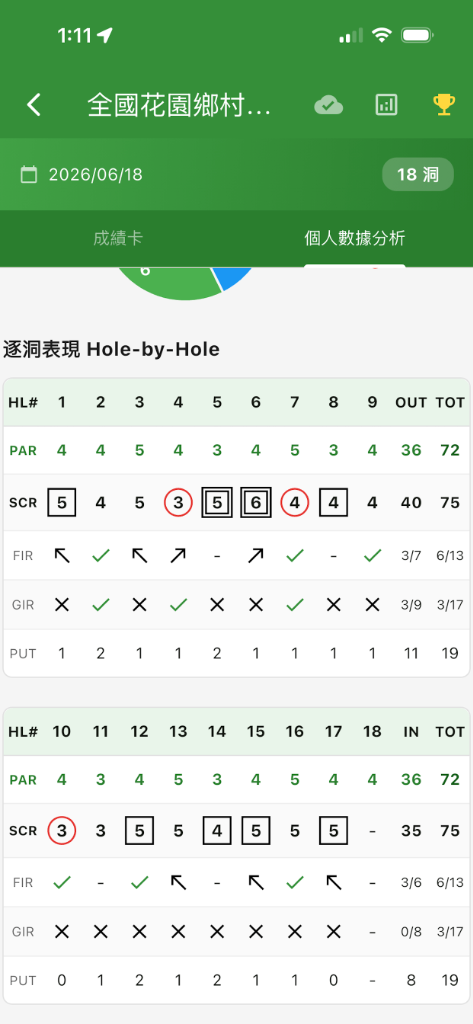
Review your average performance and weaknesses specifically on Par 3, Par 4, and Par 5 holes, as well as a detailed hole-by-hole progress log for the round.
How to Create a Game Format?
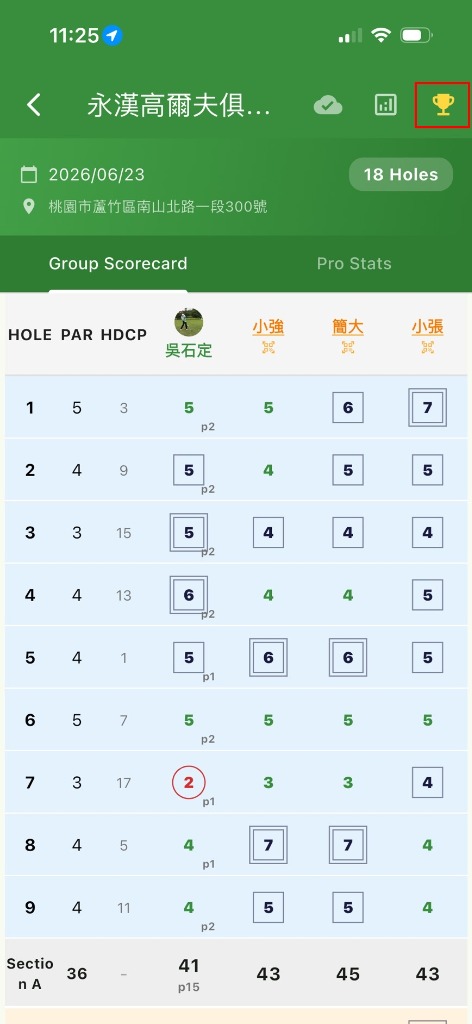
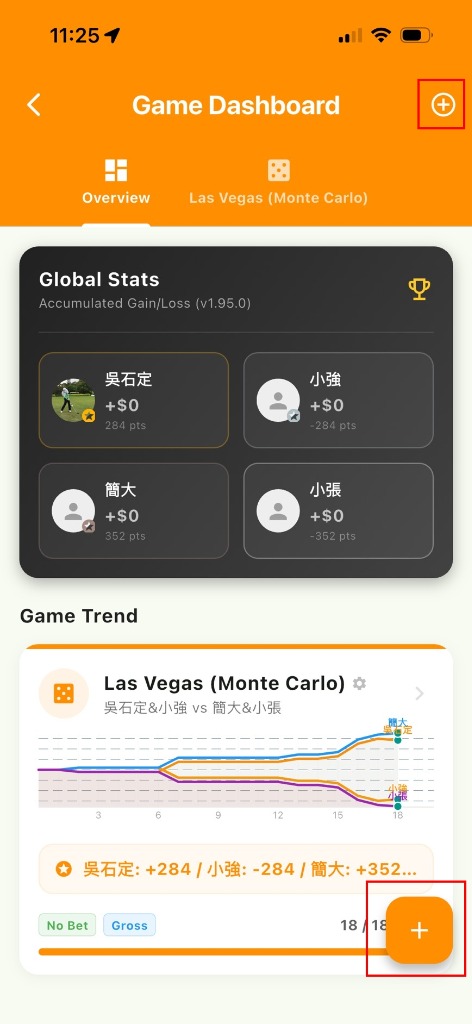
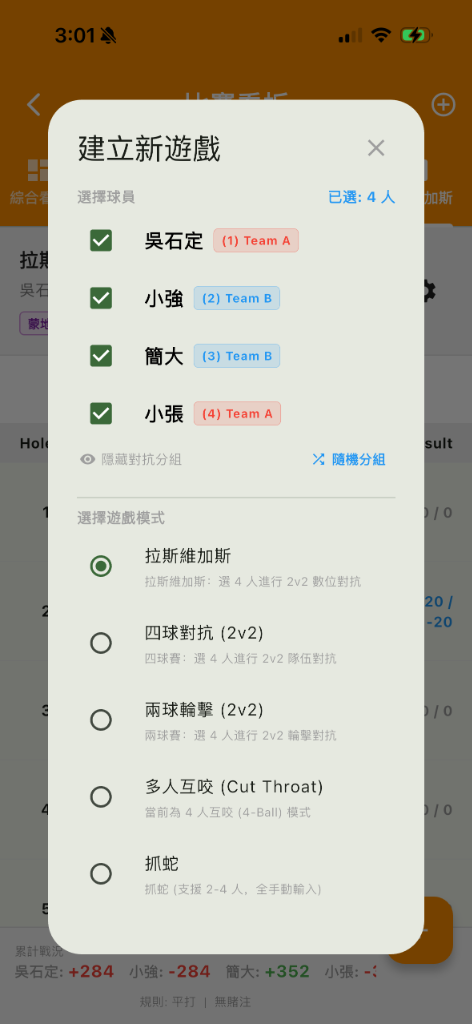
In the scorecard view, tap the 🏆 Trophy icon in the top right to enter Game Center.
Tap the + New Game button at the bottom right (or below the list).
Select the game format:
| Format | Players | Description |
|---|---|---|
| Las Vegas | 4 (2v2) | Digit pairing/add/multiply with Birdie Flip |
| Match Play | 2 or 4 | Hole-by-hole, supports 1v1 / Four-Ball / Foursomes |
| Dou Dizhu | 3 | Landlord vs Peasants 1v2 battle |
| Cut-Throat | 3–4 | Individual survival, Round Robin match play |
Select participating players (from the scorecard player list), set unit amount and bonus rules.
Tap Confirm — the system begins calculating points for each hole in real-time.
How to View Game Center?
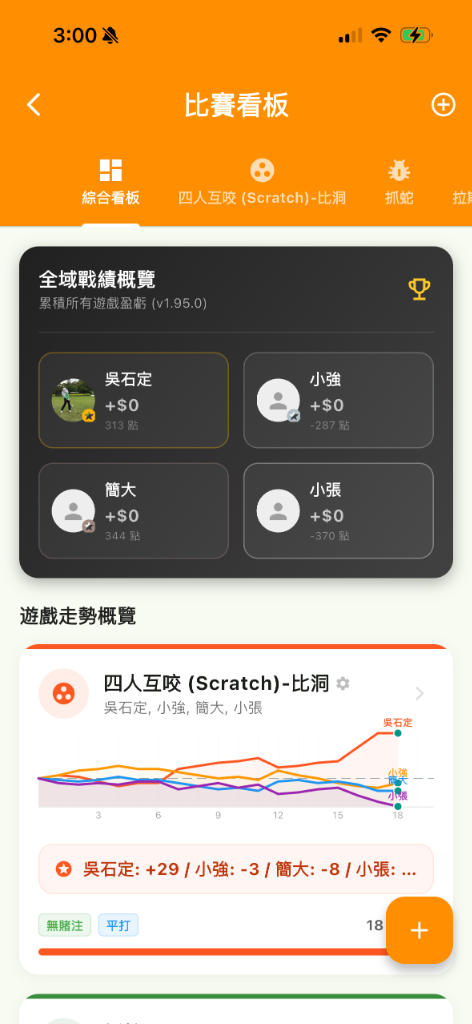
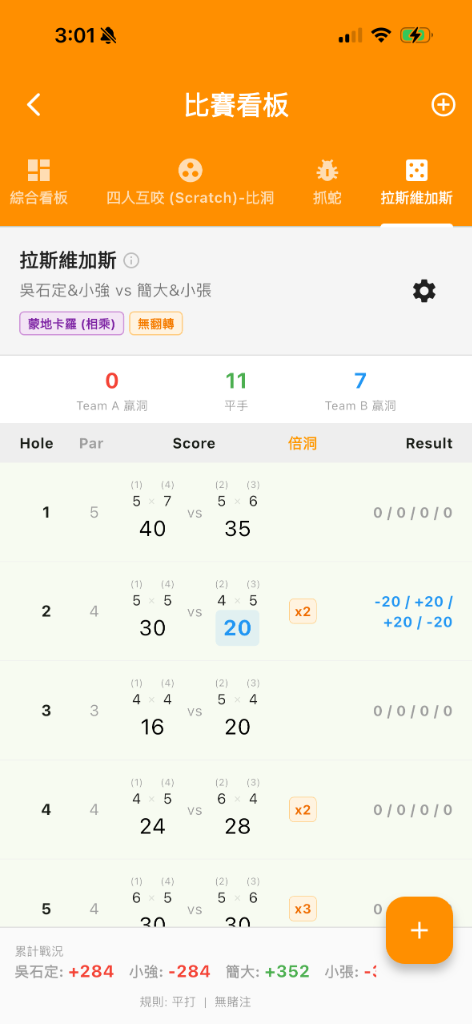
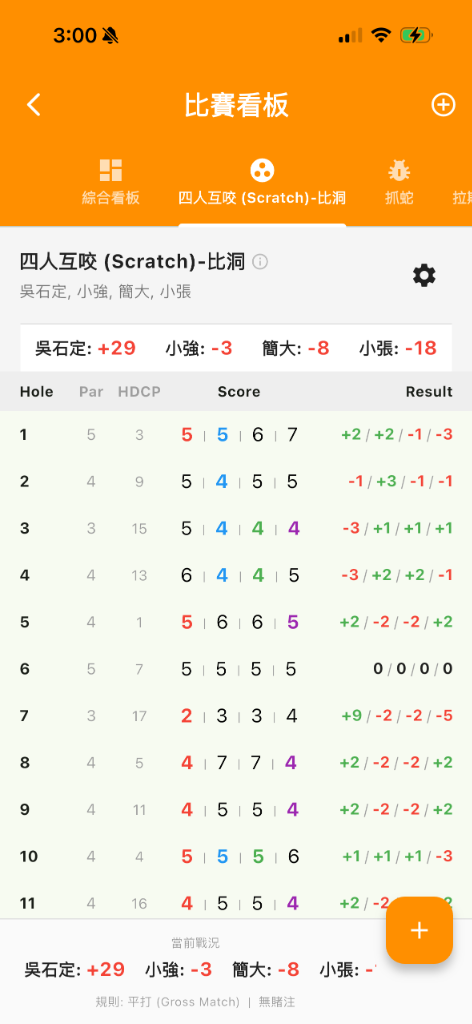
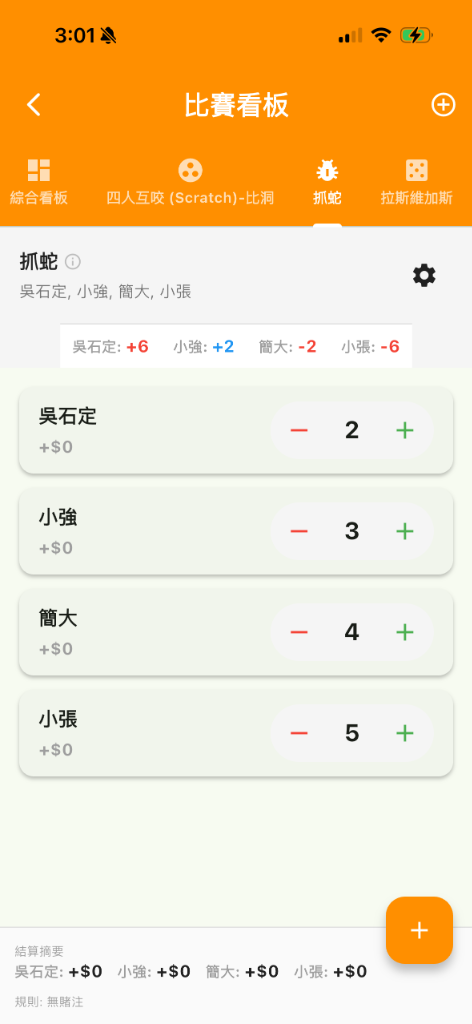
In the scorecard view, tap the 🏆 Trophy icon in the top right to enter Game Center.
All created game formats are displayed here. Tap individual cards for detailed settlement and hole-by-hole trends.
In Game Center, you can see:
- Overview Tab: Cumulative points summary across all game formats.
- Individual Format Tabs: Switch to specific formats to view hole-by-hole trend charts and detailed breakdowns.
- Settlement Amount: Automatic calculation of points × unit amount.
How to Join or Create a Team?
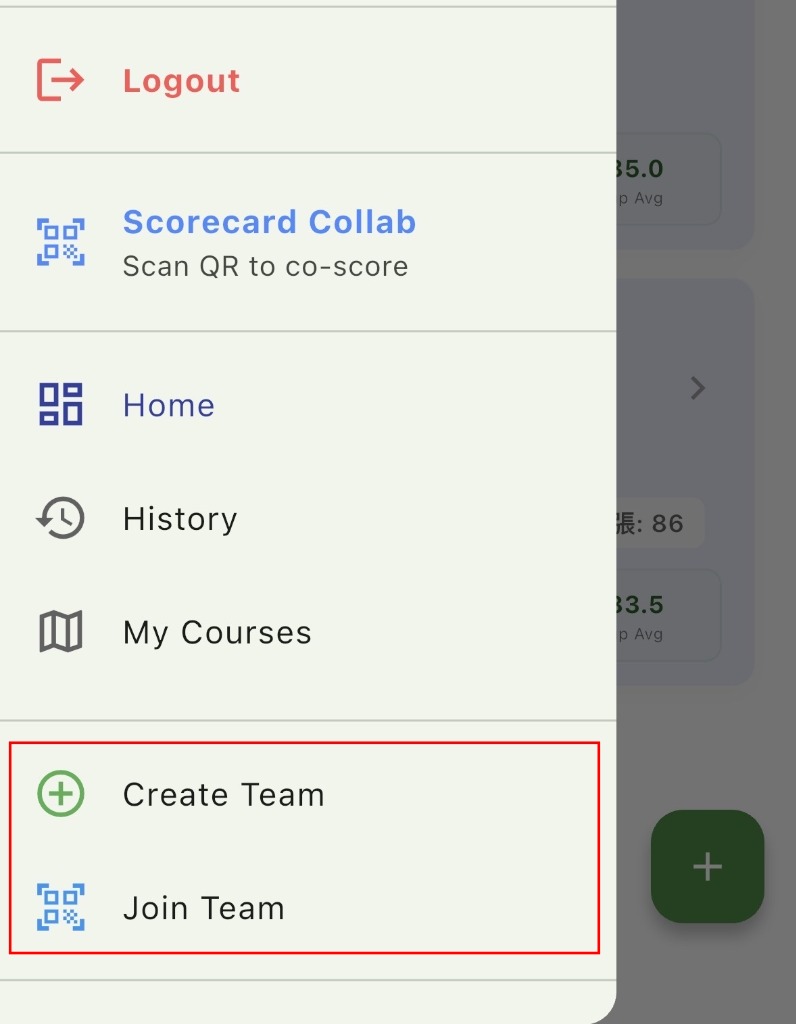
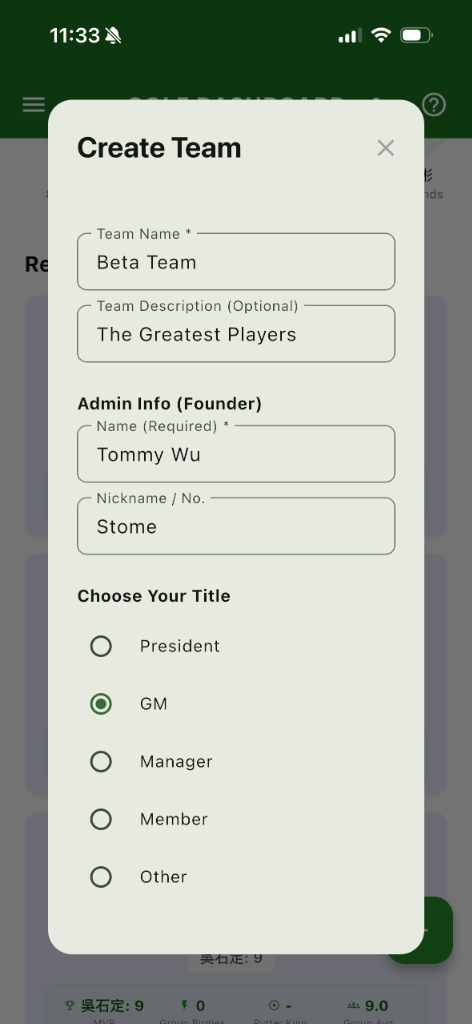
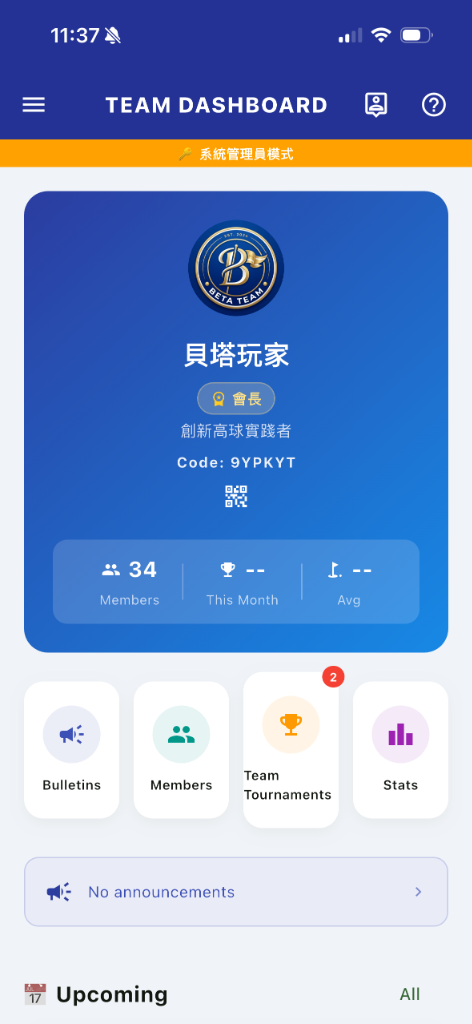
Create a New Team
Tap ☰ Menu in the top left, select Team Mode.
Tap Create Team and enter the team name (optional description).
After creation, you're automatically the team Captain (Admin). Navigate to member management to invite others.
Join an Existing Team
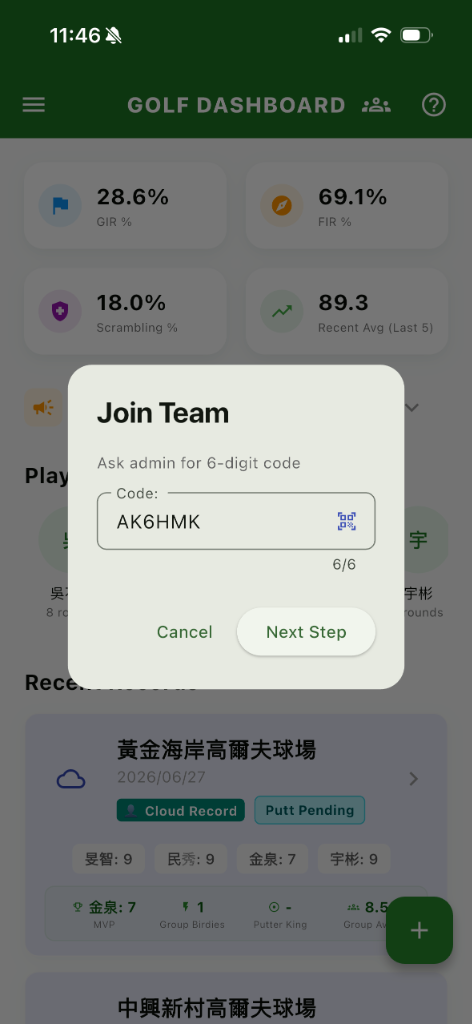
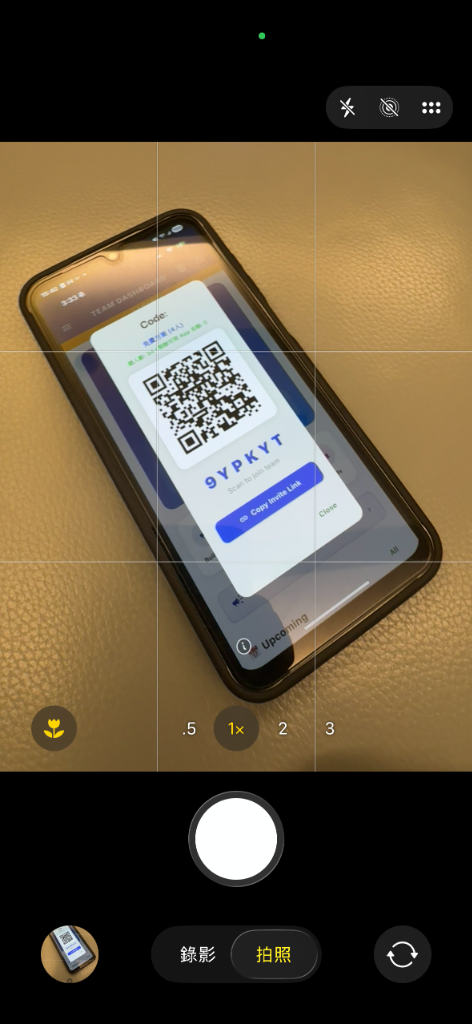
Ask the team administrator for the team invite code or QR Code.
In Team Mode, tap Join Team, enter the invite code or scan the QR Code.
Wait for administrator approval, then you'll see the team content.
Understanding the Team Dashboard
After entering Team Mode, the main screen consists of the following sections from top to bottom:
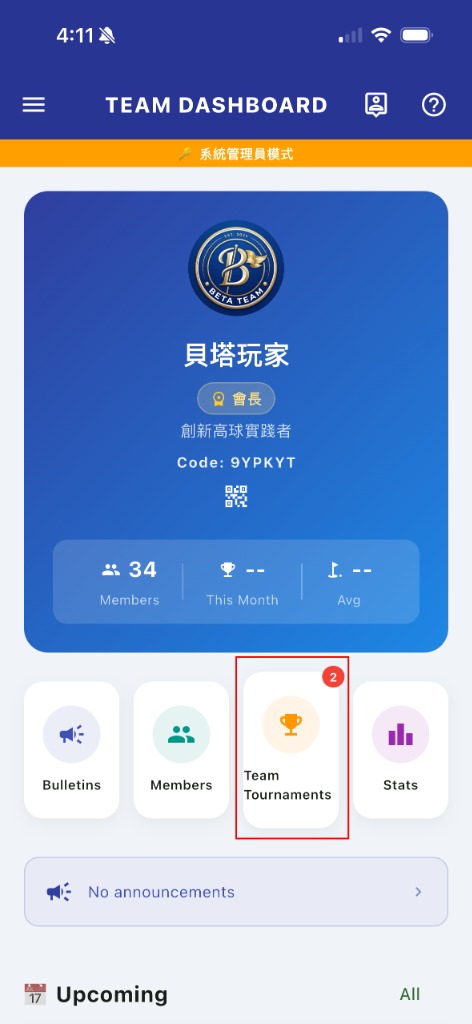
① Team Info Card (Header)
- Team Badge: Displays the team logo. Admins, Captains, or General Managers can long-press the logo for 3 seconds to upload or replace it.
- Team Name & Role Badge: Shows your title within this team (Captain / Admin / Custom Title).
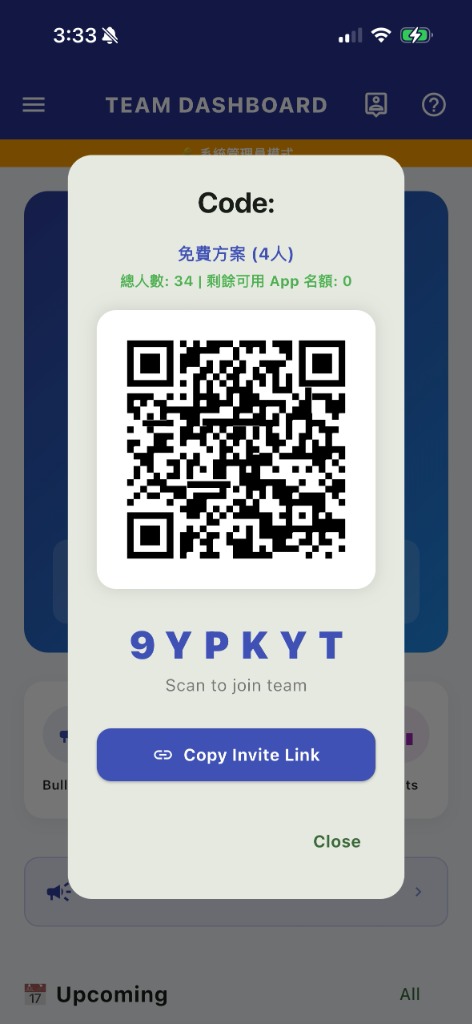
- Invite Code + QR Code: Tap the QR Code icon to open the invite dialog (see below).
- Stats Row: Quick display of member count, this month's tournaments, and average score.
② Quick Actions
Four shortcut cards on the main page for direct access to key features:
| Card | Function | Indicator |
|---|---|---|
| Bulletins | View and post team announcements | Red dot for unread items |
| Members | Manage members and review join requests | Admin sees pending count |
| Tournaments | View, create, and manage team tournaments | Active tournament count |
| Stats | View overall team data summary |
③ My Group Quick Access (Appears Before a Tournament)
When you've registered for a tournament and been assigned to a group, a green shortcut card automatically appears on the main page showing your group number and teammates. Tap it to enter the scorecard directly.
④ Latest Bulletin Preview
Shows the most recent announcement summary. Tap to open the full bulletin board.
⑤ Upcoming Events
Shows up to 2 upcoming tournaments with status "Open / Locked / In Progress". Tap any card to view details. Tap "View All" to see the full tournament list.
⑥ Recent Results
Shows the 2 most recently completed tournaments. Tap to view final scores and rankings.
How to Invite Members? Sharing the Invite Code
On the Team Dashboard, tap the QR Code icon in the Header section.
The invite dialog displays:
- Current team plan (Free 4 / Lite 12 / Std 24 / Flagship 36 members)
- Approved member count and remaining App slots
- A scannable QR Code
- The text invite code (displayed in large bold type)
Tap Copy Invite Link to copy the invite URL to the clipboard, then paste it into LINE, WhatsApp, or any messaging app.
How to Manage Team Members? Admin
Tap Members in Quick Actions, or navigate via ☰ Menu → Member Management.
Admins can perform the following actions on this page:
| Action | Description |
|---|---|
| Review Join Requests | Approve or reject new member applications (AppBar shows badge when pending) |
| Assign Title | Set a custom title for members (e.g., "General Manager", "Secretary") |
| Set as Admin | Promote a regular member to admin role |
| Enable/Disable App Access | Control whether a member can access team features (manage paid slots) |
| Remove Member | Remove a member from the team |
How to Use the Bulletin Board?
Tap Bulletins in the Quick Actions section.
Admins can tap the + button at the bottom right to post a new announcement, with an option to pin it to the top.
All members can read announcements. A red dot appears on the Bulletins card when there are unread items.
How to Transfer Team Position? Admin
Navigate to ☰ Menu → Position Transfer (visible to admins only).
Select the target member to transfer the position to, then confirm to complete the handover.
How to Use Finance Management? Admin
Navigate to ☰ Menu → Finance Management.
On first entry, a financial disclaimer will appear. Confirm to proceed (you can check "Don't show again").
The Finance page allows you to record team income/expenses and track each member's payment status.
How to Create a Tournament? Admin
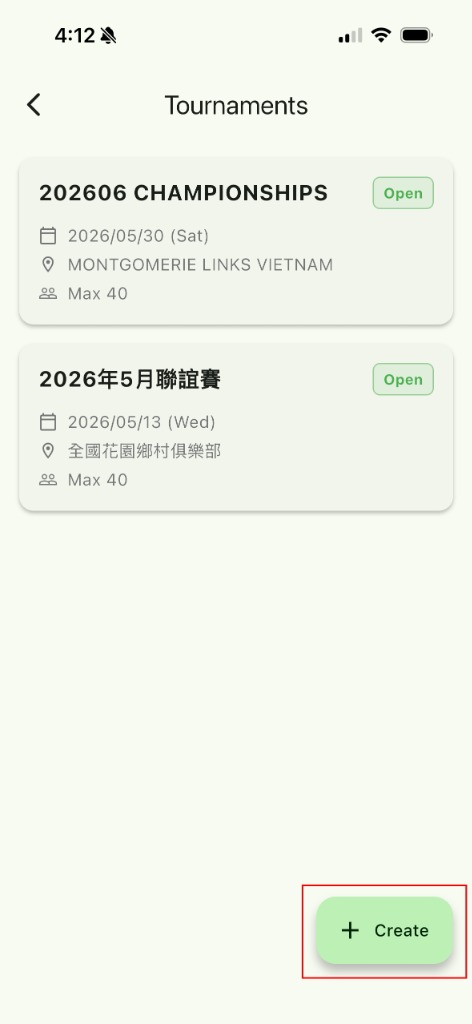
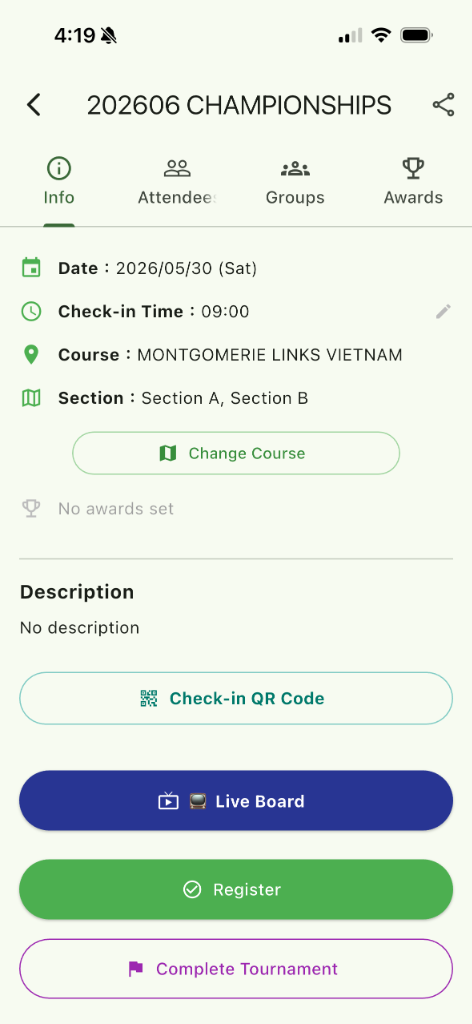
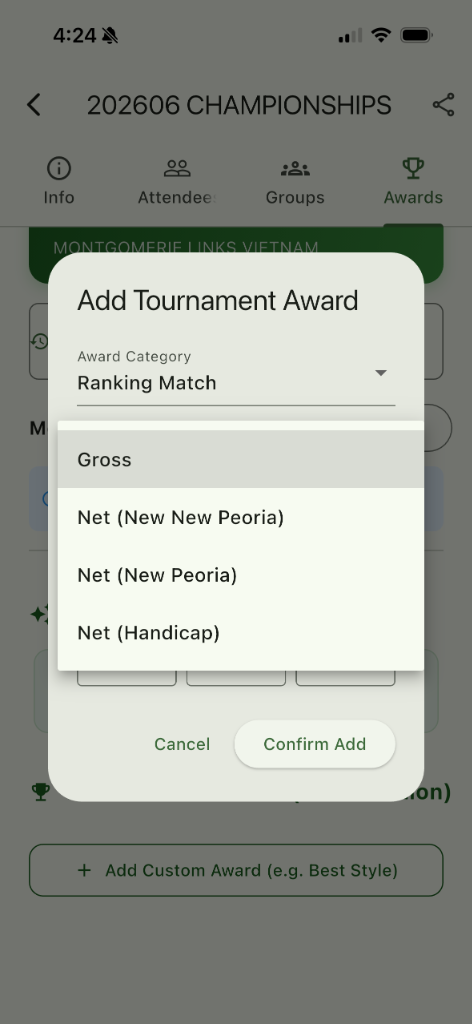
In Team Mode, tap the Tournament Management tab.
Tap + Create Tournament, fill in tournament name, date, and course.
Select ranking method:
| Ranking Mode | Description |
|---|---|
| New New Peoria | Purely random 12 hidden holes, HDCP formula calculates net score |
| New Peoria | Par 3/4/5 each exclude 2 holes for balanced blind-hole selection |
| Gross Score | Direct ranking by raw strokes, no HDCP calculation |
Set up awards (Longest Drive, CTP, BB Award, etc.) and assign corresponding hole numbers.
Tap Publish — team members can now see the event on the tournament page.
How to Project the Live Board? Admin
In Tournament Management, tap the Live Board button.
The system generates a live leaderboard URL. Open this URL in a browser on a big screen or TV.
The board auto-refreshes in real-time, showing all players' score rankings. No manual refresh needed.
How to Enable Ceremony Mode? Admin
In Tournament Management, toggle the Ceremony Mode switch.
Once enabled, all team members' rankings on their phones become "frozen and hidden," preserving the mystery of final standings.
When ready to announce, press Announce Results — all members' phones simultaneously display final rankings with celebration animations.
How to View Annual Summary & Export PDF? Admin
In Team Mode, navigate to the Annual Summary page.
Use the year selector at the top to choose the year to view.
The table displays all members' tournament scores, handicaps, and payment status.
Tap the 🖨️ Print icon in the top right — the system auto-generates a PDF document.
After generation, you can print directly or share to the team chat via the share function.
How to View Player Stats & Honor Wall?
In Team Mode, navigate to the Member List.
Tap any teammate's name to enter their personal data page.
The page has three tabs:
- Stats Dashboard: Rounds played, average score, best record (18-hole completions only).
- Honor Wall: Medal display of all awards — gold/silver/bronze frames indicate placement.
- Match History: All rounds listed in reverse chronological order. Tap to jump to the full scorecard.
How to Switch Interface Language?
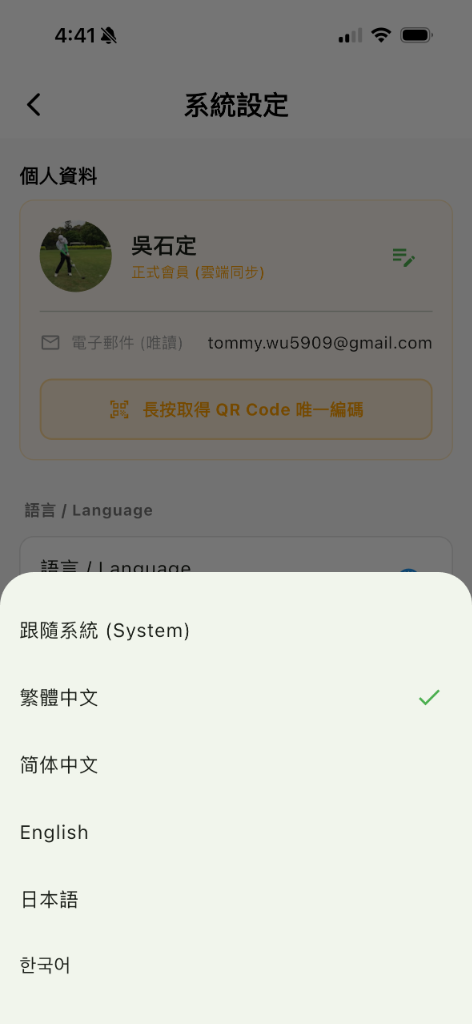
Navigate to ☰ Menu → Settings.
Find the Language section and tap to expand.
Select a language: Traditional Chinese, Simplified Chinese, English, Japanese, Korean, or "Follow System."
The entire interface switches instantly upon selection.
How to Clear Cache?
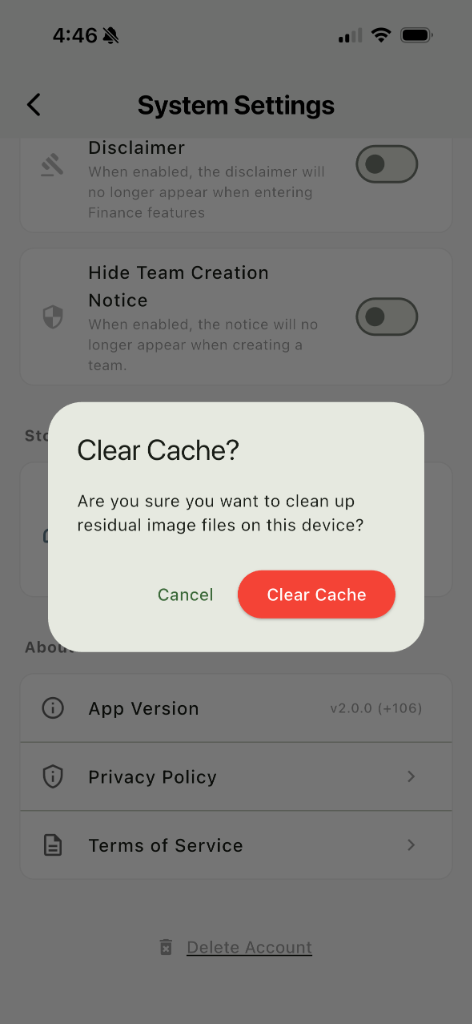
Navigate to ☰ Menu → Settings.
Scroll down to the Cache Management section. It displays the current temporary image storage size.
Tap Clear Cache — the system deletes temporary scan images from the AI recognition process.
How to Bind Identity & Receive Manual Scoring Results?
【Receiver】Display Personal Identity Code
Navigate to ☰ Menu → Settings.
Below the profile card, find the button with the 🔗 QR icon. Long-press it to display your personal QR Code.
【Scorer】Scan Teammate's Code to Bind
On the scorecard, tap the "Teammate Name" field you want to bind scores to.
The system activates the camera. Scan the teammate's displayed QR Code to complete binding.
Once bound, the teammate seamlessly receives all scores you recorded on their behalf — no manual copying or syncing needed.
How to Subscribe to VIP?
Tap ✨ Subscribe & Upgrade in the ☰ Menu, or find the subscription section in Settings.
Compare Personal Plans:
| Plan | Ad-Free | Cloud Sync |
|---|---|---|
| Free | ❌ | ❌ |
| Lite | ✅ | ❌ |
| Pro | ✅ | ✅ |
Team Expansion Plans (For Captain/Admin):
| Plan | Team Size Limit |
|---|---|
| Free Team | 4 Members |
| Team Lite | 12 Members |
| Team Std | 24 Members |
| Team Flagship | 36 Members |
Tap the Upgrade button under your desired plan and complete payment via App Store / Google Play.
How to Migrate Guest Account (Data Transfer)?
If you previously used as a guest, now sign in with Google / Apple.
After signing in, the system auto-detects whether local guest-period history records exist.
If records are detected, a dialog appears asking:
- Transfer: Merge guest records into the new account.
- Discard: Abandon guest records and start fresh.
After selection, the system processes and enters the main screen.
Frequently Asked Questions
Contact Support
If the above instructions don't resolve your issue, please contact us:
Support Email: support@ren4golf.com
When reporting issues, please provide the following to speed up resolution:
- Device model and OS version (iOS / Android)
- App version number (bottom of Settings page)
- Specific steps to reproduce the issue
- For OCR issues, please attach the original scorecard photo
We commit to responding within 48 hours (excluding weekends and public holidays).